Overview
This document provides a structured, step-by-step process to verify that an Exinda appliance can successfully communicate with the GFI Exinda AI service endpoint.
Solution
Follow the steps below for Network & Endpoint Reachability Testing
Target Symptoms:
-
AI Advisor or AI Wizard tabs are missing from the Web UI.
-
AI tabs are visible but result in a “Timeout” or “No Response” when clicked.
-
AI features that were previously functional have suddenly stopped working.
-
AI Advisor or AI Wizard tabs are missing from the Web UI.
1. TECHNICAL PREREQUISITES
Before beginning, ensure the following environment requirements are met:
-
Firmware Version: Exinda v7.6.1 or later (AI features were introduced in this release).
-
Outbound Access: The network must allow outbound HTTPS (Port 443) to ai.exinda.com.
Admin Access: Credentials for the Exinda Web UI with administrative privileges.
2. STEP-BY-STEP DIAGNOSTIC PROCESS
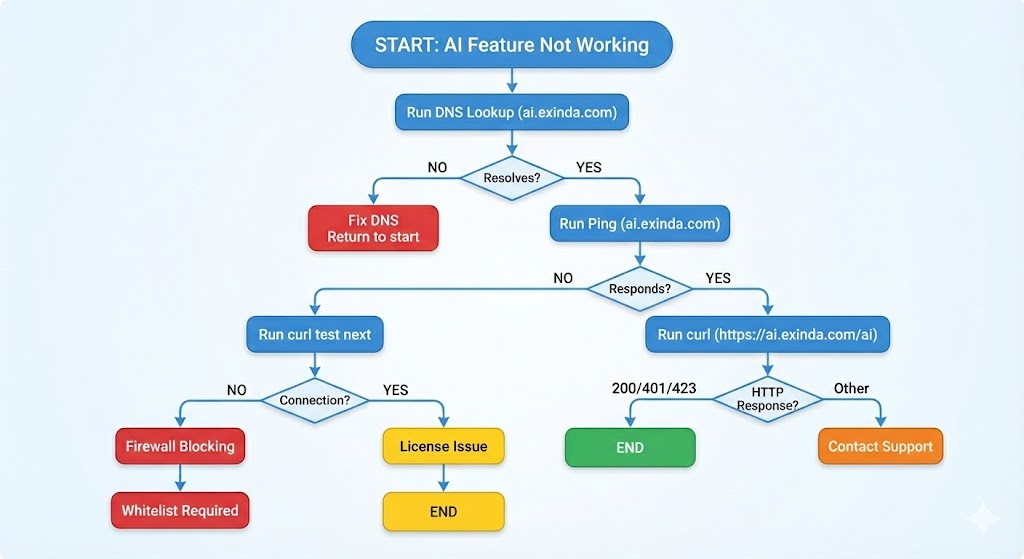
STEP 1: DNS Resolution Test
Objective: Confirm the appliance can translate the domain name ai.exinda.com into a reachable IP address.
-
Navigate to Configuration > System > Tools > DNS Lookup.
-
Enter ai.exinda.com and click Lookup.
-
Success Criteria: The system returns IP addresses (e.g., 18.235.20.216 or 100.24.203.157).
-
If it fails: Go to Configuration > System > Network > DNS and verify your DNS servers (e.g., 8.8.8.8) are correctly configured and reachable.
STEP 2: Network Path Test (Ping)
Objective: Verify a basic network path exists between the appliance and the AI cloud.
-
Navigate to Configuration > System > Tools > Ping.
-
Enter ai.exinda.com and click Ping.
-
Success Criteria: 0% packet loss (responses received).
-
Note: If Ping fails but DNS succeeds, proceed to Step 3. Some high-security networks block ICMP (Ping) but allow HTTPS traffic.
STEP 3: HTTPS Application Layer Test (CRITICAL)
Objective: Confirm that the actual AI service endpoint is reachable and not blocked by a firewall or proxy.
-
Navigate to Configuration > System > Tools > Console.
-
Type the following commands: bash
-
en
-
curl -v https://ai.exinda.com/ai
-
-
Analyze the Response Codes:
-
✅ HTTP 200 OK: Connection successful. The AI service is fully reachable.
-
✅ HTTP 401 Unauthorized: Connectivity is working, but there is a license issue (Proceed to Phase 2).
-
✅ HTTP 423 Locked: Connectivity is working, but the EULA must be accepted.
-
❌ Connection Timeout: The connection is being dropped. Action: Contact your network team to whitelist ai.exinda.com on port 443.
-
❌ SSL Certificate Error: A proxy or firewall is performing “SSL Inspection.” Action: Bypass SSL inspection for *.exinda.com.
-
3. FIREWALL WHITELISTING REQUIREMENTS
If Phase 1 tests indicate a block, provide the following details to your Security/Network team: * Source: Exinda Management IP Address * Destination Domain: ai.exinda.com and *.exinda.com * Protocol/Port: HTTPS / TCP 443 * Requirement: Outbound connectivity must be direct (unauthenticated) or configured via the Exinda Proxy settings.
3. SUMMARY CHECKLIST FOR ESCALATION
If you have completed Phase 1 and the issue persists, ensure you have the following ready for GFI Support: * [ ] Screenshot of the DNS Lookup result for ai.exinda.com. * [ ] The full text output of the curl -v command from Step 3. * [ ] Confirmation that the Exinda is running version 7.6.1 or higher. Submit ticket https://support.exinda.gfi.com/
Summary
This guide helps verify whether an Exinda appliance can connect to the Exinda AI service (ai.exinda.com) when AI features are missing or not responding.
Ensure firmware v7.6.1+ is installed, admin access is available, and outbound HTTPS (TCP 443) is enabled. Test connectivity by checking DNS resolution, network reachability (Ping), and HTTPS access using curl. The curl response code indicates whether the issue is connectivity, licensing, EULA acceptance, or firewall/SSL inspection blocking. If blocked, allow *HTTPS access to ai.exinda.com / .exinda.com and collect diagnostic outputs before contacting support.
FAQ
- Why are the AI Advisor or AI Wizard tabs missing in the Exinda Web UI?
These features require Exinda firmware version 7.6.1 or later and connectivity to the ai.exinda.com service. If the firmware is older or the appliance cannot reach the AI endpoint, the tabs may not appear. - What does the
curl -v https://ai.exinda.com/aitest verify?
It checks whether the appliance can establish an HTTPS connection to the AI service endpoint. The HTTP response code indicates whether the connection works or if there are issues such as licensing, EULA acceptance, firewall blocking, or SSL inspection. - What firewall settings are required for Exinda AI features to work?
The firewall must allow outbound HTTPS (TCP port 443) from the Exinda management IP to *ai.exinda.com and .exinda.com, with no authentication or SSL inspection blocking the traffic.
Andriy Rybalchenko
Comments